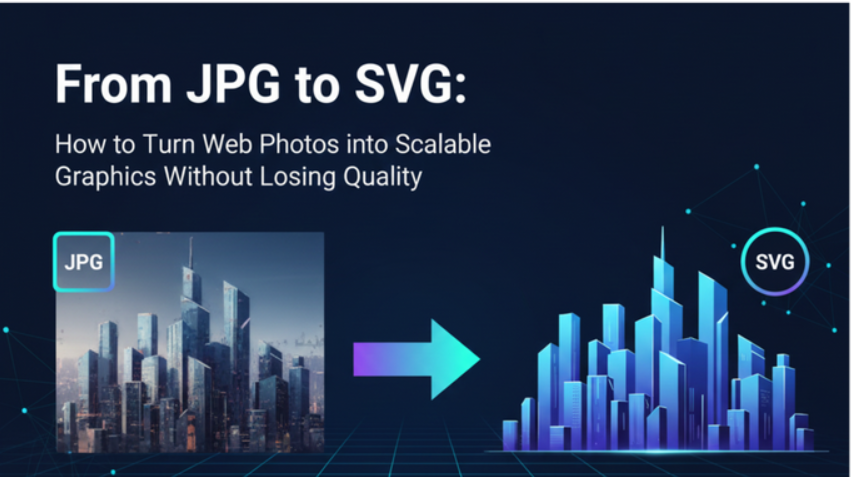
From JPG to SVG: How to Turn Web Photos into Scalable Graphics Without Losing Quality
Quick Summary: How to Convert JPG to SVG
- Open Image converter page on the website
- Upload your JPG file from your device
- Select the format you want to convert the image into
- Preview the SVG to check the shapes and details
- Download the SVG file once you are satisfied with the preview
- Make adjustments or re upload the JPG if the result needs refinement
Introduction
Most images we see online are JPG files. They look fine when viewed at their normal size, but once you try to enlarge them, things change fast. The edges soften, details fade, and the picture loses its sharpness. If you have ever tried to stretch a JPG for a poster, website header, or presentation, you already know this problem well.
This is where SVG graphics come in. SVG files are crisp at any size because they scale without losing quality. They work beautifully on modern screens and are perfect for designers, developers, and anyone who wants clean visual results.
The good news is that turning a JPG into an SVG is easier than it sounds. With the right online tools, you can create a scalable version of almost any simple graphic. In this guide, we walk through how to do it and what to expect when converting web photos to vectors.
JPG vs SVG: Why They Behave So Differently
To understand why JPG files blur when resized, you only need to know one simple thing. JPGs are made of pixels. SVGs are not.
A JPG is built using thousands of tiny colored squares. When you stretch it, each square becomes larger. This causes the image to appear soft and sometimes pixelated. There is no way for a JPG to create new detail. It only enlarges what is already there.
SVGs work differently. They are built using paths, shapes, and mathematical instructions. They do not depend on pixels. Because of this, SVG graphics always stay sharp, even at very large sizes.
Here is a simple comparison:
| Feature | JPG | SVG |
|---|---|---|
| Scales cleanly | No | Yes |
| Editable | Limited | Fully editable |
| Best for | Photos | Logos, icons, shapes |
| Web performance | Medium | Very fast |
Both formats have a purpose. JPGs are great for photos. SVGs are better for clean graphics. When you want a web image to stay sharp at any size, SVG is the way to go.
When You Should Convert JPG to SVG
Not every image needs to become an SVG. But in many cases, converting your JPG file can make a huge difference in quality and performance. Here are a few situations where SVG conversion works well:
When you are working with simple shapes or icons
When you need a logo that scales perfectly
When the design must look sharp on a website or app
When you want graphics that load quickly
When you want to edit the design without losing clarity
SVGs also work well for print design because they can stretch to any size without distortion. This makes them a great choice for posters, packaging, and large displays.
The Challenge: Not All JPGs Convert Easily
It is important to know that converting a JPG to an SVG is not always a perfect process. Photos contain complex details, soft edges, and blended colors. When converted to vector format, those details need to be simplified. This means the resulting SVG may look more like a stylized illustration than a realistic photo.
However, for icons, text, shapes, drawings, line art, and simple graphics, the conversion works very well.
A high quality conversion depends on:
Clear edges
High contrast shapes
Simple subjects
Clean backgrounds
If your JPG contains these qualities, the SVG result will be much smoother and cleaner.
How SVGMaker Helps You Convert JPG to SVG Easily
Converting a JPG used to require heavy design software. Today, you can do it online in a few simple steps. SVGMaker lets you upload a JPG image and turn it into jpg, png, webp, etc formats.
We also offer an AI-SVG converter that lets you convert any image into SVGs. Simply upload a file, and type a prompt describing the design if you want, then it will convert the image into svg.
You do not need any experience. You do not need special software. Everything runs in your browser. The tool traces your image, identifies shapes, and builds a vector version that stays sharp at any size.
This process makes your graphic easier to use across websites, devices, and printed materials.
Step by Step: How to Convert JPG to SVG
The process is simple. Here is how it works:
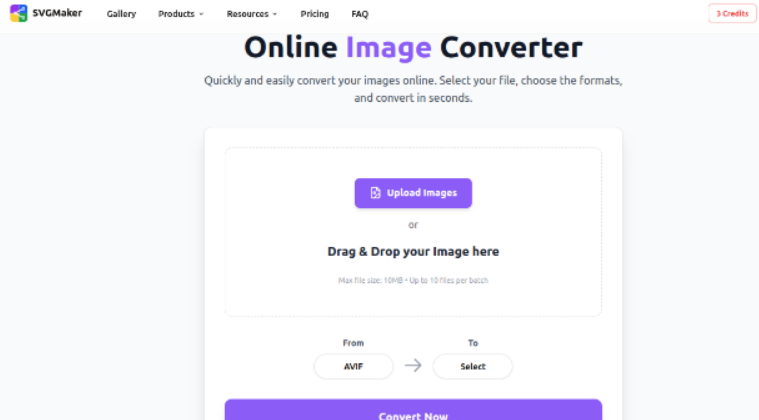
Step 1. Open the converter page
Visit the converter tool on the website. You will see a clear and simple interface that guides you through the process.
Step 2. Upload your JPG file
You can upload almost any JPG image from your device. Once uploaded, the tool begins processing it.
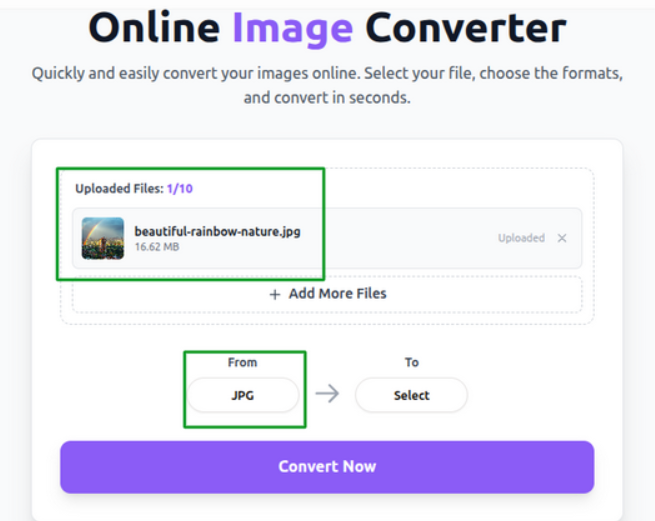
Step 3. Select the Format
Select the format you want to change the image into. For eg, SVG-
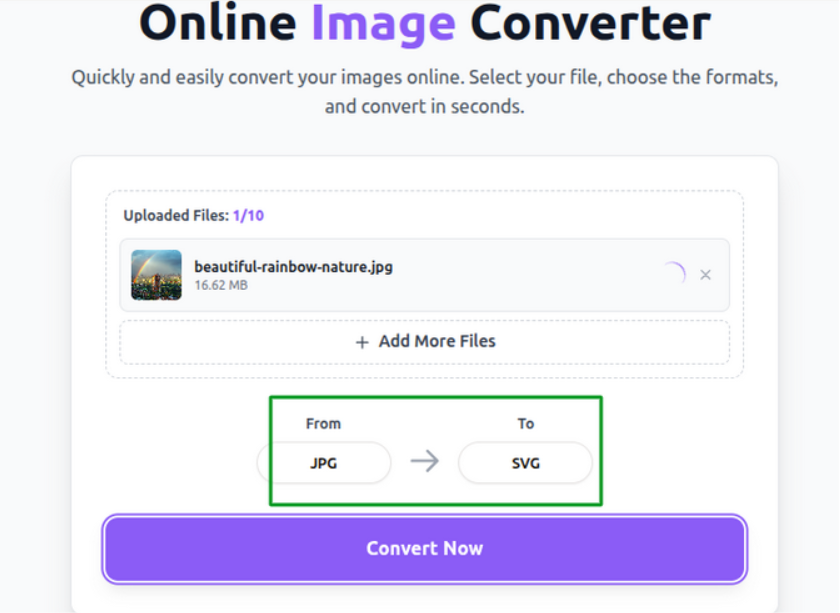
Step 4. Download the SVG
Once you are happy with the result, simply download the SVG file. It will now be ready for web design, editing, or print.
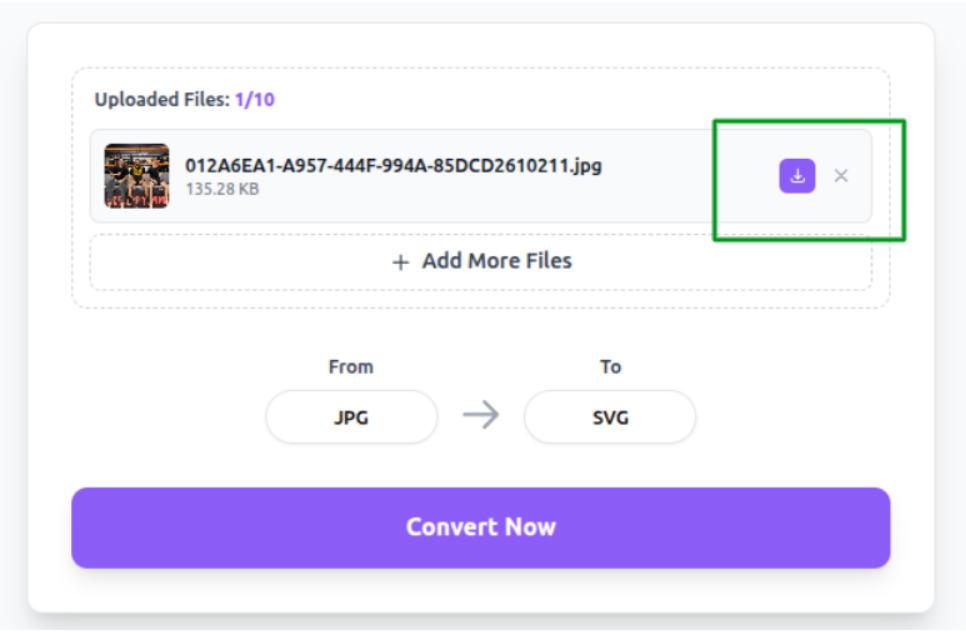
Step 5. Refine if needed
If the graphic has many small details or noise, you can adjust settings or simplify your JPG before trying again.
Common Mistakes and How to Avoid Them
Here are simple mistakes people make when converting images and how you can avoid them:
Using very low resolution images
The better the JPG quality, the cleaner the SVG will be.
Converting complex photos
Photos do not translate well into vectors. Use vector conversion for simpler graphics.
Ignoring contrast
If edges are not clear, the tool cannot detect shapes accurately.
Not simplifying the background
Busy backgrounds create unwanted shapes. Remove them first if possible.
Taking a moment to prepare your JPG can dramatically improve your SVG results.
Where You Can Use Your New SVG Graphic
After converting your image, you can use it almost anywhere. SVG graphics are great for:
Websites and online stores
Brand icons and logos
Presentations
Infographics
Mobile apps
Print design
Banners and posters
Once you try designing with scalable graphics, it becomes hard to go back to pixel based images.
Frequently Asked Questions
1. Why do JPG images lose quality when resized?
JPGs are made of pixels. When you enlarge them, each pixel stretches and becomes more visible. This causes the image to look blurry. JPGs cannot recreate new detail when scaled up. They can only stretch what is already there.
2. What makes SVG files different from JPG files?
SVG files use paths, shapes, and mathematical instructions instead of pixels. Because of this, they stay sharp at any size. They also load quickly, edit easily, and work well across the web.
3. Can I convert any JPG into an SVG?
You can convert most JPGs, but the results will vary. Simple graphics convert very well. Complex photos convert into stylized vector artwork. Realistic details will not transfer perfectly into path based graphics.
4. What types of images convert best to SVG?
Logos, icons, line drawings, simple illustrations, flat shapes, and graphics with strong edges convert beautifully. These images have clear lines that tools can trace accurately.
5. Why does my converted SVG look different from the JPG?
This usually happens when the JPG contains many small details or blended colors. SVG format simplifies shapes, so fine details may be removed or merged. Adjusting the original JPG often improves the result.
6. Do I need design software to convert a JPG to SVG?
No. You can convert images directly in your browser. Online tools do the tracing and vector creation for you. There is no need for complex design programs.
7. Will converting a JPG to an SVG improve its quality?
It will not add new detail to the original image. Instead, it gives you a scalable version that stays sharp at any size. The benefit is in the clean scaling, not in enhancing the original photo.
8. Can I edit the SVG after conversion?
Yes. SVG files are easy to edit. You can adjust shapes, colors, and paths in vector editors or even in simple browser tools. This is one of the biggest advantages of using SVG graphics.
9. Where can I use the SVG after converting it?
SVG graphics work well in websites, apps, presentations, branding, print, infographics, and UI design. They also display cleanly on retina screens and large displays.
10. Is converting JPG to SVG safe to do online?
Yes. Most converters process your file directly in your browser. Your images are not stored or shared. It is a fast and secure way to create scalable graphics.
Conclusion
Turning a JPG into an SVG is a simple way to keep your graphics sharp and adaptable across every device. With the right tool, you can upload a basic web image and transform it into a clean vector that edits easily and loads quickly. This gives you more freedom, better design results, and a smoother workflow.
If you need an easy way to convert JPG to SVG online, try using SVGMaker. Our converter helps you create crisp, scalable graphics without extra steps or complicated software. It is a simple way to bring your designs to life with clean and reliable vector output.